Yes. Gemini can take meeting notes during Google Meet calls, and Google now supports a separate in-person note-taking flow from the Meet home screen.
The important distinction is that Take notes for me is a Google Meet feature, not a general-purpose bot that joins any meeting link. It works natively in Meet and saves the result to Google Drive. It does not automatically attend Zoom or Microsoft Teams calls.
The short version:
- Use Gemini in Google Meet when your meetings already live in Google Workspace and you want the recap in Docs, Drive, and Calendar.
- Use Gemini for an in-person meeting when you want a phone or computer to capture a room conversation without starting a normal video call.
- Use a cross-platform notetaker when your meetings move between Meet, Zoom, Teams, phone calls, and in-person conversations.
- Use Anarlog when you want bot-free capture, a local SQLite meeting record, open-source code, and control over the AI provider.
The three Gemini meeting-note workflows
| Meeting | Native Gemini note-taking? | How capture starts | Where the result goes |
|---|---|---|---|
| Google Meet video call | Yes | Calendar, Meet greenroom, or the Take notes for me control during the call | A Google Doc in the organizer's Drive, linked from Calendar and shared according to meeting settings |
| In-person conversation | Yes | Take notes from the Meet home screen on web or mobile | A Google Doc in the starter's Drive, with the link sent by email |
| Zoom or Microsoft Teams call | No native Take notes for me flow | Use that platform's transcript or a cross-platform notetaker | Depends on the capture tool or manual workflow |
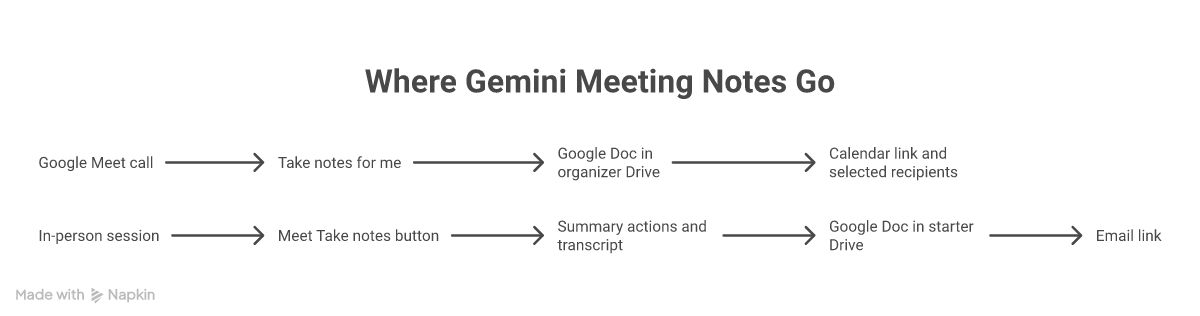
Google's native path works well when Drive is already your system of record. The path stops being native when meetings move across several conferencing platforms or the canonical record needs to stay on your computer.
How Take notes for me works in Google Meet
For a scheduled Meet call, you can enable note-taking in three places:
- Google Calendar: Edit the event, open Video call options, choose Meeting records, and enable Take notes with Gemini.
- The Meet greenroom: Check the meeting tools before you join.
- During the call: Select Take notes for me and start the feature.
Gemini listens from inside the Meet experience. It does not appear as a separate guest participant. Google shows all participants that notes are being taken, including a pencil icon on their screens.
During the meeting, the feature can create a running recap and suggested next steps. On supported desktop flows, someone who arrives late can use Summary so far to catch up without asking the room to repeat the discussion.
Hosts and co-hosts can also configure:
- who receives the notes,
- a standard or longer summary,
- sections such as summary, decisions, next steps, and details,
- the meeting language,
- whether note-taking stays enabled for future instances of a recurring meeting,
- and, where available, whether presented material can appear as screenshots in the notes.
Google recommends the feature for meetings from 15 minutes to 8 hours. It also warns that a summary may be incomplete or fail when the meeting is too short, connectivity is poor, or the conversation does not meet its acceptable-use rules. Treat the Doc as a generated recap, not a guaranteed verbatim record.
Google's current Take notes for me guide documents the controls, sharing options, supported languages, and troubleshooting behavior.
Who can start and stop Gemini notes?
The answer depends on host and administrator settings.
When Host Management is enabled, only the host and co-hosts can start or stop note-taking. Without those controls, internal participants may be able to stop the feature. An administrator can also enable Quick Stop so an internal user can end capture for everyone.
For sensitive meetings, decide who starts the feature, announces it, pauses it for off-the-record discussion, and checks the final access list.
Google also lets Workspace administrators:
- turn AI note-taking on or off by organizational unit or group,
- choose the default audience for generated notes,
- decide whether hosts can change that audience,
- control whether screenshots of presented content may be included,
- and apply Meet retention policies through Google Vault.
The default sharing option for managed Workspace accounts is internal invited guests, but an administrator can restrict notes to hosts and co-hosts or allow all invited guests. The invitation list matters: being able to see an attachment on a Calendar event does not automatically grant access to the underlying Doc.
Google's administrator guide explains the current sharing and policy controls.
Where do Gemini meeting notes go?
After a normal Google Meet call, Gemini generates a Google Doc and saves it in the meeting organizer's Drive under the Google Meet folder. A meeting-specific subfolder contains the notes. Google attaches the document to the Calendar event and sends the recap link according to the host's sharing settings.
The organizer can choose among three practical audiences:
- all invited guests, including external guests,
- invited guests inside the organization,
- or hosts and co-hosts only.
Those are invite-based permissions, not an attendance report. Someone invited to the meeting may receive access even if they did not attend. A member of a group mailing list may still need individual access to the document.
The notes follow the organization's configured Meet retention policy. They are not a separate private notebook outside Google Workspace. If your organization uses Vault holds, retention rules, data regions, or Drive sharing restrictions, those controls are part of the workflow.
Can Gemini take notes for an in-person meeting?
Yes. Google began rolling out a dedicated in-person mode in August 2026.
From the Meet home screen on web or mobile, select Take notes, place the device near the conversation, and start capture. You can pause or stop the session without opening a normal video call. When the session ends, Gemini creates a structured summary, action items, and transcript in a Google Doc, saves it to Drive, and emails the link.
The in-person mode closes one of the older product gaps. Gemini can now cover a conference-room conversation or an informal discussion where nobody needs a video link.
There are still boundaries:
- the account needs an eligible Workspace edition or Google AI plan,
- an administrator can disable the feature,
- Smart features must be enabled,
- the feature supports one language at a time,
- and the resulting record remains in Google Drive.
Google's in-person meeting announcement lists the rollout by platform and plan. Its in-person help guide covers the current controls.
Which plans include Gemini meeting notes?
For managed Google Workspace accounts, Take notes for me is currently listed for:
- Business Standard and Business Plus,
- Enterprise Standard and Enterprise Plus,
- Frontline Plus,
- and Google AI Pro for Education.
For personal Google accounts, Google lists the feature for Google AI Pro and Google AI Ultra. Google AI Plus is not listed for Take notes for me.
The meeting organizer needs an eligible plan. An administrator must also allow the feature for work or school accounts. If the control is missing, check the organizer's plan, the admin setting, and Workspace Smart features before treating it as a client problem.
Because Google changes plan packaging, use the current Workspace with Gemini feature table rather than relying on an old per-user price.
Which languages does Gemini support for meeting notes?
Take notes for me currently supports eight spoken languages:
- English
- French
- German
- Italian
- Japanese
- Korean
- Portuguese
- Spanish
Only one language is supported at a time. If the meeting switches languages for at least 30 seconds, Meet may offer to change the active language. That change applies to the current note-taking and other active meeting records, but not automatically to future instances of a recurring meeting.
Translated captions support a much broader language set, but translated captions and AI meeting notes are different features. Do not use the caption count to infer note-taking support.
Does Google train Gemini on meeting notes?
For Gemini inside Workspace apps, Google says Workspace content is not used to train or improve the generative AI models that power Gemini and other systems outside Workspace without permission. Google also says Workspace content is not used for advertising.
It is still a cloud-hosted workflow. The generated Doc lives in Drive, administrators can apply retention rules, and sharing settings determine who can open it.
The useful privacy questions are therefore:
- Is the account a managed Workspace account or a personal Google AI plan?
- Who can start capture?
- Does the administrator require explicit participant consent?
- Who is on the Calendar invite and therefore eligible for access?
- What Meet and Vault retention rules apply?
- Are screenshots of presented material enabled?
Google's Workspace Gemini privacy guide describes its current training, advertising, and data-control commitments.
Does Take notes for me record the meeting?
Note-taking, transcription, and recording are separate meeting artifacts.
Take notes for me creates an AI-generated notes document. A normal Meet recording is a separate control and file. A transcript is also a separate artifact in the standard video-call workflow. Depending on administrator and host settings, the features can run together, but enabling AI notes does not mean you should assume that a video recording exists.
The newer in-person flow is different: Google's announcement says the finished Doc includes a complete transcript along with the summary and action items.
If you need a verbatim compliance record, test the exact artifact settings and retention policy. An AI summary alone should not be treated as a substitute for a required recording or certified transcript.
Is Gemini the best meeting notetaker?
Gemini fits a team already standardized on Google Meet, Drive, Docs, Calendar, and Workspace administration. There is no guest bot to admit, the recap lands in familiar tools, and existing Workspace controls apply.
The choice changes when meetings leave Google or the record needs to stay local.
| Need | Gemini in Meet | Anarlog |
|---|---|---|
| Google Meet-native setup | Excellent | Works through desktop audio capture |
| Zoom, Teams, phone, and mixed platforms | Not a native cross-platform capture tool | Works across meeting types from the desktop |
| Visible meeting bot | No | No |
| Canonical meeting record | Google Doc in Drive | Local SQLite |
| AI provider choice | Google Gemini | Managed AI, bring your own key, or local models |
| Open-source code | No | Yes, MIT licensed |
| Organization-wide Workspace administration | Strong | Personal desktop workflow with optional sharing and sync |
| Unattended meeting attendance | No | No |
Gemini is the stronger fit when the organization wants Google Workspace to remain the meeting system of record.
Anarlog is the stronger fit when the user wants the meeting record to remain local, needs the same capture workflow across several platforms, or wants to choose the transcription and AI stack.
Using Anarlog for Google Meet notes
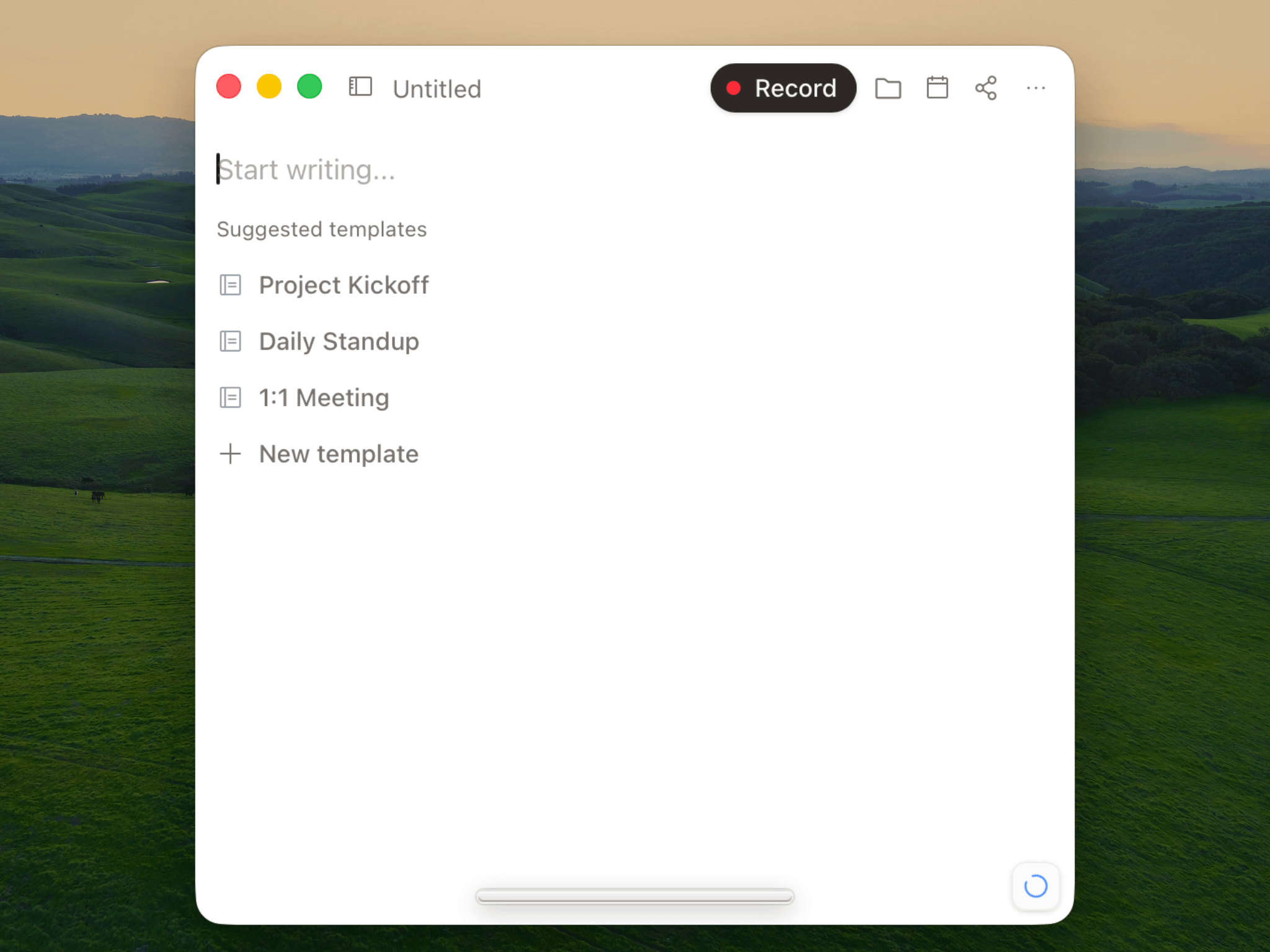
Anarlog captures microphone and system audio from your computer, so it does not join the Google Meet call or request calendar admission. The same capture model works for Zoom, Microsoft Teams, phone calls, and in-person conversations.
The canonical meeting record, including sessions, notes, transcripts, and metadata, lives in local SQLite. Markdown is available as an export rather than being the underlying storage model. You can use managed AI, bring your own provider keys, or run local models through Ollama or LM Studio.
That control comes with a different operating model. Anarlog does not attend a meeting for you, and it is not a replacement for an administrator-managed Google Workspace archive. If you enable hosted AI, CloudSync, sharing, or another provider, review that explicit data path instead of assuming that bot-free means nothing leaves the device.
A practical setup checklist
Before standardizing on Gemini meeting notes:
- Confirm that the organizer has an eligible plan.
- Check that the Workspace administrator has enabled AI note-taking.
- Choose who may start and stop capture.
- Set the notes audience before the call.
- Decide whether screenshots of presentations are allowed.
- Tell participants that notes are being taken and follow the consent rules that apply.
- Verify the Drive folder, Calendar attachment, and final sharing permissions after a test meeting.
- Confirm the Meet and Vault retention policy.
- Test a multilingual meeting if your team regularly switches languages.
- Decide what to use for Zoom, Teams, and other non-Meet calls.
A native feature reduces moving parts. Access, retention, and consent still need explicit decisions.
Frequently asked questions
Can Gemini listen to a meeting and take notes?
Yes. In Google Meet, Take notes for me listens during the call and generates a notes Doc. Google also supports an in-person mode from the Meet home screen on eligible web and mobile accounts.
How do I get Gemini notes from Google Meet?
After the meeting, open the recap email or the attachment on the Google Calendar event. Both link to the generated notes Doc.
Where do Gemini meeting notes go?
Scheduled Meet notes are saved in the organizer's Drive under the Google Meet folder. In-person notes go to the Drive of the person who started capture.
Can Gemini take notes in Zoom or Microsoft Teams?
Google's Take notes for me feature does not natively join Zoom or Teams. Use that platform's own meeting artifacts, a manual transcript workflow, or a cross-platform desktop notetaker.
Is Gemini meeting note-taking free?
Not as a generally available free Meet feature. It requires an eligible Workspace edition or Google AI plan. Personal-account access is currently listed for Google AI Pro and Ultra.
Does everyone know when Gemini is taking notes?
Google Meet notifies participants and shows a pencil icon. A Workspace administrator can also require explicit consent before note-taking begins. Notification is not a substitute for following the law, company policy, and client expectations for the meeting.
Can Gemini notes handle multiple languages in one meeting?
Not currently. The feature supports one active language at a time, even though Meet offers broader language coverage for other features such as translated captions.
The short answer
Use Gemini when you want a Meet conversation to become a Google Doc in Drive and the organizer has an eligible plan. Use another capture path when the call runs in Zoom or Teams, or when the canonical record needs to stay local.
The real decision is where the meeting record should live after the summary is generated.
Download Anarlog if you want one bot-free workflow across meeting platforms, with a local meeting record and control over the AI stack.